

Description
Download Auto Mouse Click – Free Automated Mouse Click Tool for Windows
Auto Mouse Click is a lightweight, user-friendly software designed to automate mouse clicks on your Windows PC. Ideal for repetitive tasks, gaming, testing, or productivity enhancement, this tool allows you to schedule clicks, simulate mouse movements, and perform actions without manual input. Developed by Murgee, the software has been a reliable choice for users seeking a simple yet effective way to automate mouse interactions. With a minimal footprint and no complex setup, Auto Mouse Click is perfect for both beginners and advanced users. Whether you're automating form submissions, running scripts, or playing games that require rapid clicking, this tool delivers consistent performance. It’s especially popular in regions like Hong Kong, Indonesia, and Turkey, where users appreciate its efficiency and ease of use. Despite being a trial version, it offers full functionality, making it a smart choice for temporary automation needs. The software supports older Windows versions, including Windows XP, ensuring compatibility with legacy systems. Download Auto Mouse Click today and streamline your workflow with a secure, free, and efficient automation tool.
Key Features of Auto Mouse Click
Auto Mouse Click stands out in the crowded field of automation tools due to its simplicity and powerful core features. One of its most praised aspects is the ability to schedule automated clicks at precise intervals. Whether you need a single click, a sequence of clicks, or continuous clicking over a set duration, the software handles it with ease. The interface is clean and intuitive, allowing users to set click positions with just a few mouse movements—no coding required. This makes it accessible even for non-technical users who want to automate basic tasks like filling out forms or navigating menus.
Another standout feature is the customizable click speed and delay settings. Users can fine-tune the timing between clicks, which is essential for tasks requiring precision—such as in online games or software testing. The tool also supports multiple click types, including left-click, right-click, and double-click, giving users full control over their automation workflows. Additionally, Auto Mouse Click includes a built-in pause/resume function, allowing you to stop and restart the automation process without losing your settings.
For those concerned about system performance, the software is remarkably lightweight. It uses minimal RAM and CPU resources, ensuring it won’t slow down your computer during long-running tasks. The program also runs silently in the background, making it ideal for unobtrusive automation. With no intrusive ads or bundled software, users can trust that their system remains secure and clean. Overall, Auto Mouse Click delivers a powerful yet simple automation experience—perfect for anyone looking to save time and reduce manual effort on their Windows machine.
How to Install and Use Auto Mouse Click on Windows
Installing Auto Mouse Click is a straightforward process, especially for users who are not tech-savvy. First, visit the official download page and click the "Download" button. The file is typically small in size—under 5MB—making it quick to transfer even on slower internet connections. Once downloaded, locate the .exe file and double-click to run the installer. You’ll be prompted with a standard setup wizard; simply follow the on-screen instructions to complete the installation.
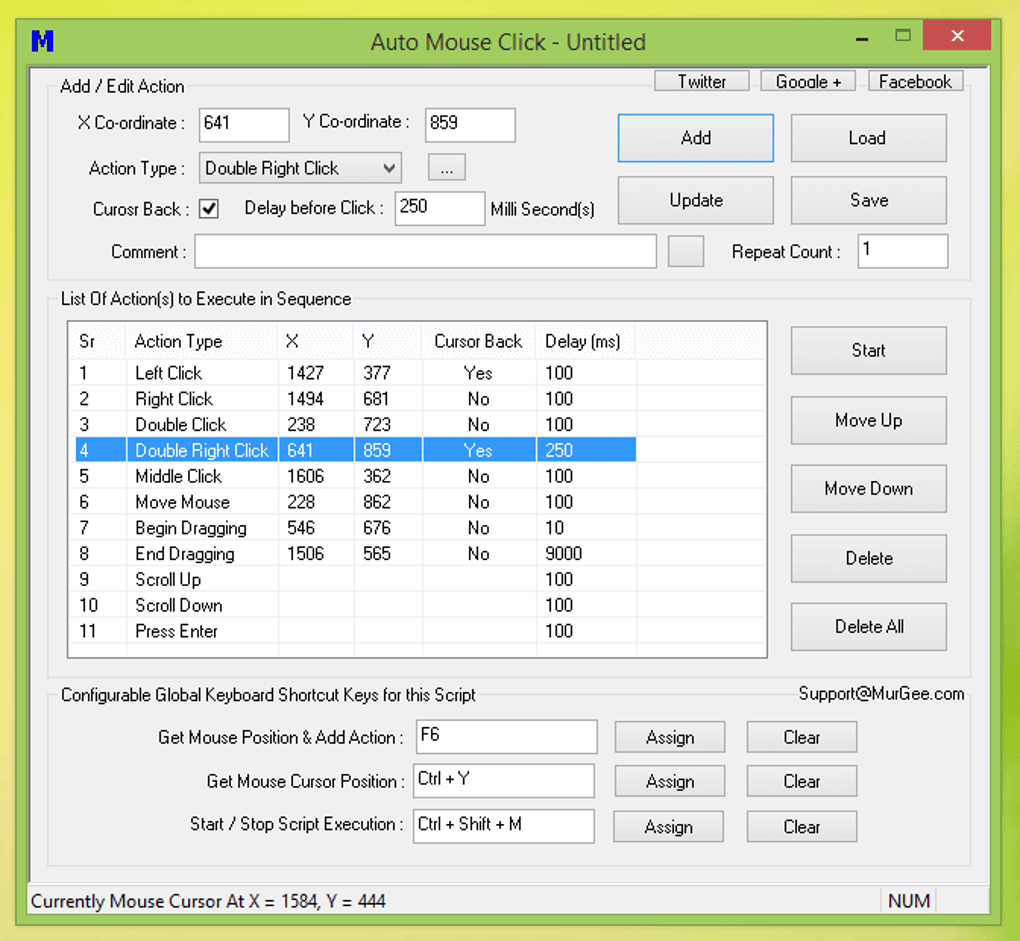
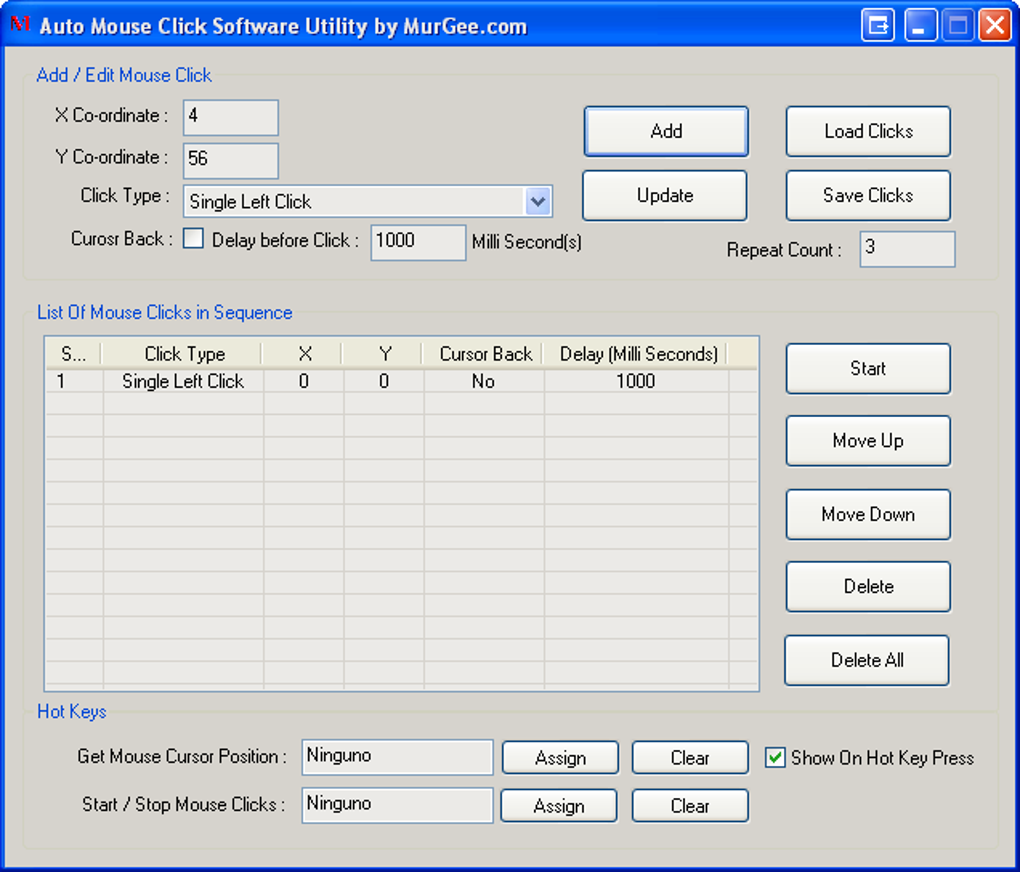
After installation, launch the program from the Start menu or desktop shortcut. The main interface displays a simple dashboard with options to set click positions, choose click types, and define timing parameters. To begin automation, click the “Set Position” button and move your cursor to the desired location on the screen. The software will automatically detect and save the coordinates. You can then select the number of clicks, delay between clicks, and whether to loop the action indefinitely or stop after a set number of repetitions.
For advanced users, the tool supports saving and loading profiles, allowing you to reuse complex automation sequences. You can also use the “Start” button to begin the process and the “Stop” button to halt it instantly. The software runs quietly in the background, so you can continue using your computer for other tasks while automation is active. To ensure safety, it’s recommended to test your automation sequence on a non-critical task first. With its minimal learning curve and reliable performance, Auto Mouse Click is a go-to tool for anyone needing a quick, secure, and free way to automate mouse actions on Windows.
Compatibility and System Requirements
Auto Mouse Click is specifically designed for Windows operating systems, making it a great fit for users running older or lightweight machines. It supports a wide range of Windows versions, including Windows XP, Windows Vista, Windows 7, Windows 8, and Windows 10. This broad compatibility ensures that even users with legacy systems can benefit from its automation features without needing to upgrade hardware or software.
Despite being released in 2011, the software remains functional on modern Windows systems, thanks to its lightweight architecture and minimal system requirements. It doesn’t require a high-end processor or large amounts of RAM—just a basic system with a standard mouse and keyboard. This makes it ideal for older laptops, school computers, or devices used in low-resource environments.
It’s important to note that Auto Mouse Click is not available for Mac, Android, or iOS. If you’re using a non-Windows device, you’ll need to explore alternative automation tools such as Keyboard Maestro (Mac), MacroDroid (Android), or Shortcuts (iOS). However, for Windows users, this software remains a solid choice. The tool is available in English only, but its simple interface makes language barriers minimal. With a stable release history and consistent performance across different Windows environments, Auto Mouse Click continues to be a trusted automation companion for millions of users worldwide.
Pros and Cons of Auto Mouse Click
- Pros:
- Lightweight and fast—uses minimal system resources
- Simple, intuitive interface suitable for beginners
- Supports customizable click timing and repetition
- Free trial version with full functionality
- Runs silently in the background without interruptions
- Compatible with older Windows systems (XP and up)
- Cons:
- Not available for Mac, Android, or iOS
- Last updated in 2011—no recent feature improvements
- No built-in recording or playback of complex sequences
- Only available in English
- Limited support for advanced automation scripting
Frequently Asked Questions (FAQ)
- Is Auto Mouse Click safe to download and use?
-
Yes, Auto Mouse Click is considered safe when downloaded from trusted sources. The software has been around since 2011 and has been used by over 100,000 users without major security issues. However, always download from the official or verified websites to avoid malware-infected versions.
- Can I use Auto Mouse Click for gaming?
-
Yes, many users employ Auto Mouse Click for gaming automation, especially in repetitive tasks like farming or clicking in casual games. However, using automation tools in online multiplayer games may violate the game’s terms of service, so use with caution.
- Does Auto Mouse Click work on Windows 10 and 11?
-
Yes, Auto Mouse Click is fully compatible with Windows 10 and Windows 11. Despite its last update in 2011, the software runs smoothly on modern Windows systems due to its lightweight design and compatibility with older APIs.
- Can I schedule multiple click sequences?
-
While Auto Mouse Click allows you to set individual click sequences, it doesn’t support creating or managing multiple scheduled tasks simultaneously. You’ll need to run each sequence one at a time.
- Is there a free version available?
-
Yes, Auto Mouse Click is available as a free trial version with full access to all features. There are no hidden limitations or watermarks—users can test the software completely free of charge.
Final Thoughts: Is Auto Mouse Click Worth Downloading?
Auto Mouse Click remains a solid choice for Windows users seeking a no-frills, reliable way to automate mouse clicks. Despite its age and lack of recent updates, the software continues to deliver on its core promise: simple, efficient automation. Its lightweight design, ease of use, and compatibility with older systems make it a valuable tool for students, office workers, testers, and casual gamers.
While it lacks advanced features like macro recording or cross-platform support, it excels in its niche. If you need a quick, secure, and free tool to automate repetitive mouse tasks on Windows, Auto Mouse Click is definitely worth a download. With over 100,000 downloads and a loyal user base, it’s a proven solution that continues to deliver value.
Ready to save time and boost productivity? Download Auto Mouse Click today and experience seamless automation on your Windows PC—no strings attached, no cost, and no hassle.
Guides & Tutorials for Auto Mouse Click
How to install Auto Mouse Click
- Click the Preview / Download button above.
- Once redirected, accept the terms and click Install.
- Wait for the Auto Mouse Click download to finish on your device.
How to use Auto Mouse Click
This software is primarily used for its core features described above. Open the app after installation to explore its capabilities.
User Reviews for Auto Mouse Click 0
No reviews found





